Wednesday, 10 April 2013

Finding Serial Key Of Any Software Using Simple Google Trick

Most of you download and use pirated software from torrents or any such other sites, but sometime it gets very difficult to find serial key of those softwares. I will make it easy for you by showing you simple yet very intersting google trick which will allow you to find serial key of any software very easily.

How To Find Serial Key Of Any Software ?

The key 94FBR is a part of  Office 2000 Pro CD activation key that is widely distributed as it bypasses the activation requirements of Office 2000 Pro. By searching for 94fbr and the product name, you are guarantee that the pages that are returned are pages dealing specifically with the product you're wanting a serial for. Follow simple steps given below to learn this trick

    1. Go to Google
    2. Then type  Software Name 94FBR
  • Replace Software Name with the name of software whose serial key you want to find
  • Eg: To find serial key of Nero i will type Nero 94fbr
    3. Now press Enter and you will find serial key of software you are looking for as shown below.
google trick to find serial key

More Such Awesome Tricks You Will Enjoy

Saturday, 6 April 2013

How To Disable Right Click On Your Website Or Blog ?

 Disable Right Click for blog
If you own a blog or a website then you always want to prevent other malicious bloggers from copying the content from your blog. You might have written an article with great efforts and lots of research and other just copy/paste it on their blog. To prevent such users from copying content from your blog i will show you Javascript Trick to disable right click on your blog. So lets get started.

How To Disable Right Click On Your Blog ?

 1. Got to your blogger Dashboard and then Click on Layout.
blogger widget

 2. Now Click on Add Gadget and select Html/Javascript.
blogger widget
 3. Now paste code given below in the pop up window.
<!--MBW Code-->
<script language='JavaScript1.2'>
function disableselect(e){
return false
}
function reEnable(){
return true
}
document.onselectstart=new Function ("return false")
if (window.sidebar){
document.onmousedown=disableselect
document.onclick=reEnable
}
</script>
<!--Code End http://mybloggersworld.blogspot.in>
 4. Save it and done. Now users will not be able to right click on your website.  5. If you like to disable mouse on your computer then check out tutorial given below.

Some Other Cool Trick For You

Thursday, 28 March 2013

Learn To Hide Files Behind The Images

hide files behind images

There are some important  files or document you want to hide from others on your computer. To do that you might be creating folder inside folder to hide such files but in todays tutorial i will change this by teaching you a interesting trick to hide files behind images.To hide a file behind a image  means that if any one opens that image he will see the image, but to see the hidden file we need to open that image in a specific way. So lets get started.

How To Hide File Behind Image ?

In order to do this you should have basic understanding of command line, but if you don't know check out  tutorial given below.
1. Select an image to be used for hiding file behind the image.
2. Now select a file to hide behind the image and make it in .RAR format. With the help of the WinRAR.
3. And most important is that paste both the files on desktop. You may do this anywhere instead of desktop if you have some basic understanding of command line.
4. Now open cmd by going to Start > Accessories > Command Prompt and type following commands in it.
cd desktop
hide files behind images

5. CD stands for change directory by typing above command you change your directory to desktop. After that type command given below.
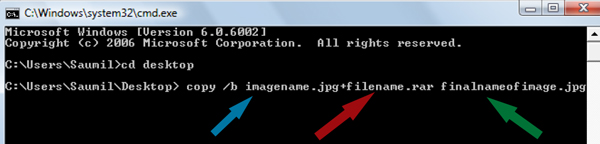
 Copy /b imagename.jpg + filename.rar finalimage.jpg
hide files behind images
  • Replace imagename.jpg with the name of image you want your file to be hidden behind. Don't forget to add image format (Eg: .jpg,.png,.gif)
  • Replace filename with name of your file you want to hide. It must be in .rar format.
  • Finally Replace finalimage.jpg with whatever name you want your final image with hidden files should be. This is the image where your file will be hidden.
6. Now when you will try to open this newly created image it will open as normal image, but to open you hidden file you need follow steps given below.

How To Access Hidden File ?

To access your hidden file you need to open the newly created image in winrar. Just follow simple steps given below to do that.

    1. Open winrar
    2. Now locate your image and open it or simply drag your image in winrar.

Saturday, 23 March 2013

Simple Trick To Use Web Browsers As Text Editor

 Web Browsers As Text Editor
In this tutorial i will show you a simple and interesting trick to use your web browser such as Google Chrome or Mozilla Firefox as a simple text editor like Notepad. This trick works on all web browsers. So lets get started.

How To Do ?

   1 Copy below code in browser Url Section

 data:text/html, <html contenteditable>

   2. Now Press Enter.
   3. Now you can type anything as would do on any other text editor like Notepad.
   4. To save your text file Press Ctrl + S and save it as anything.txt (.txt Is Must)

Some Cool Tricks

Monday, 18 March 2013

Guest Posts Now Accepted At Cool Hacking Tricks

guest postings

I am please to announce that we are now accepting Guest posts on our blog Cool Hacking Tricks. In return you will get backlink and large amount of traffic from our blog. Guest Author Name and Blog details will be posted below each post he write. So don't miss your chance to increase traffic to your blog. We accepted post related to Computer Tricks & Tips, Hacking, Mobile Tricks, Facebooks Tips & Tricks and other topics related to web and techology.

    Why To Write For Us ?

    Our Blog recieves Thousands of Pageviews daily and is constantly growing. We have more then 1400+ Email Subscribers and over 3500+ Facebook Fans so you can imagine amount of traffic we get daily. So by writing for us you can drive lots of traffic to your blog or website As Guest blogger widget with his name and his blog or website details will be placed below each post he write. So if you are interested check out below details on how to apply.

    Topics Accepted

    • Computer Tricks & Tips
    • Hacking Related Stuffs
    • Mobile Tricks
    • Facebook Tricks
    • Javascript Tricks
    • Anything Related To Web & Technology

    How To Apply ?

    Write a Good post or tutorial on any of the topic listed above. Do Not Copy and Paste from other blogs or websites. You can write what other blog have already published but write it in your own way, in your style and send me that via following method.
    • Send Me Email To ndark14@gmail.com
    • Or Contact me Via our Contact Form By Clicking Here 

      Wednesday, 13 March 2013

      Blocking Facebook On Your Computer

      I had previously posted about Blocking And Unblocking any websites on your computer. In this tutorial i will teach you to specifically block facebook on your computer. This might be helpfull if you want to prevent students from using facebook in school and colleges or your employees in office. If you are parent and don't want you child to use facebook or any other particular site then follow simple steps given below. So lets get started.

      How To Block Facebook ?

      1. Go to Start > Programmes > Accesories
      2. Then Right click on Notepad and Run it as administrator.
      3. Now open host file by clicking on File > Open and locate to following address

           C:\WINDOWS\system32\drivers\etc

      4. Then just below # 127.0.0.1 localhost paste folowing code

      # Blocking Facebook
      127.0.0.1 login.facebook.com
      127.0.0.1 www.facebook.com
      127.0.0.1 apps.facebook.com
      127.0.0.1 blog.facebook.com

      5. Now save the host file and done.
      6. Open any browser and try to open facebook. It won't open. If facebook opens then you might have done somthing wrong. (let me know if you face any problem)

      Blocking Other Website

      If you want to block website other then facebook then change facebook address with whatever website you want to block. For example: to block google paste following code below # 127.0.0.1 localhost

      # block google
      127.0.0.1 www.google.com

      Any Question

      If you find any difficulty blocking facebook on your computer then leave a comment below i will be glad to help you out. You also like to read some  interesting tutorial given below.

      Thursday, 7 March 2013

      Finding Ip Address Of A Website Using Command Prompt Or CMD

      In this tutorial i will teach you to find Ip Address of any website using Command Prompt or in short CMD. Using IP Address you can find location of the website server and do more stuff. I will demostrate this tutorial with Google but you can use this method to find IP Address of any website like twitter, facebook etc. So lets get started.

      How to find IP ?

      1. Go to Start > Type CMD and press Enter.
      2. Now write Ping followed by website URL whose IP you want to find.
      finding ip adddress of website

      3. It will take less then a second and come up with the results as shown below.
      finding ip adddress of website

      In  my next post i will show you another easy way to find website IP Address and teach you to use this IP to find its location.

      You may also like to read: