Monday, 24 June 2013

Introduction To Basic Terminal Commands For Linux - Part 1

linux terminal
In this tutorial you will learn to use linux terminal. You will learn to navigate on the terminal, learn to create and remove file and much more. Most of this commands also works on Mac Os X and powershell on windows.

What Is Terminal ?

Basically you are reading this tutorial because you are new to linux or want to learn using terminal to navigate. Before you get started you must have linux installed or running virtually on your computer. I would recommend downloading fedora or ubuntu (If you have trouble installing ubuntu leave a comment below and i will post a tutorial).

Commands To Remember

This are some of commands you must remember which will help you to use terminal more easily.
ls - it will list all files and folder in your current directory
ls -l it will give detailt listing of all files and folders
ls -a it will list all files and folder in your current directory including hidden files (files and folders that begin with period)
pwd will print your working directory or simply your current directory

Navigating In Terminal

Here i may refer folder as directory so dont get confused. This is the term we use in linux for folders.

cd - cd stands for change directory. we use cd follow by path address to navigate ro that folder.
Eg: cd Desktop will make desktop as my current directory.
cd / will make root as you current directory
cd ~ will make home as your current directory
Typing cd alone is same as cd ~ and it will make home as your current directory
cd .. will make parent directory i.e directory above your current directory
cd ../../ will take you two folder up

Creating Files And Folder

mkdir - we use mkdir follow by path or folder name to create a directory
Eg mkdir car will create directory car in your current directory
to create folder recursively i.e folder inside folder inside folder we use -p flag
Eg mkdir -p vehicles/car/truck will create directory vehicles in your current directory which have car inside it and car has directory truck in it.

touch - we use touch follow by file name to create empty file.

Removing Files And Folders

rmdir - we use rmdir follow by path to to remove any directory. This will not work if folder you are trying to remove has something in it.
rm -r  to remove file recursively which can not be removed by rmdir
rm - We use this command to remove files

Feedback

I guess thats enough for today. I know this is little confusing but practice and you will be a terminal pro.  Leave a comment below if you have any trouble. You may also like to read below articles.

Saturday, 15 June 2013

How To Block Youtube Ads ?

block youtube ads
Most of you get bored or annoyed due ads playing before youtube videos. Today i will share with you an amazing peace of programme called Block YouTube Ads . It removes all video ads before and during videos, as well as removes all those ads that pop at the bottom of the screen while the video is playing. It works on all major browser such Internet explorer, google chrome and mozilla firefox.

How to do ?

  1. Download Youtube Ads Blocker
  2. Double click on downloaded file.
  3. Follow the on screen instruction.

More Interesting Tricks

Monday, 22 April 2013

Password Protect Any Folder Without Any Software

In my previous post i have teach you to hide files behind images. In this tutorial i will show you interesting and usefull trick to password protect folder without using any software using batch file programming. This trick will work on all windows platform (Win XP, Win 7). Follow below tutorial to learn this trick.

How To Lock Folder ?

   1. Open Notepad and Copy code given below into it.
cls
@ECHO OFF
title coolhacking-tricks.blogspot.com
if EXIST "Control Panel.{21EC2020-3AEA-1069-A2DD-08002B30309D}" goto UNLOCK
if NOT EXIST MyFolder goto MDMyFolder
:CONFIRM
echo Are you sure to lock this folder? (Y/N)
set/p "cho=>"
if %cho%==Y goto LOCK
if %cho%==y goto LOCK
if %cho%==n goto END
if %cho%==N goto END
echo Invalid choice.
goto CONFIRM
:LOCK
ren MyFolder "Control Panel.{21EC2020-3AEA-1069-A2DD-08002B30309D}"
attrib +h +s "Control Panel.{21EC2020-3AEA-1069-A2DD-08002B30309D}"
echo Folder locked
goto End
:UNLOCK
echo Enter password to Unlock Your Secure Folder
set/p "pass=>"
if NOT %pass%== coolhacks goto FAIL
attrib -h -s "Control Panel.{21EC2020-3AEA-1069-A2DD-08002B30309D}"
ren "Control Panel.{21EC2020-3AEA-1069-A2DD-08002B30309D}" MyFolder
echo Folder Unlocked successfully
goto End
:FAIL
echo Invalid password
goto end
:MDMyFolder
md MyFolder
echo MyFolder created successfully
goto End
:End
   2. Save the notepad file as lock.bat (.bat is must)
   3. Now double click on lock.bat and a new folder will be created with name MyFolder
   4. Copy all your data you want to protect in that New folder
   5. Now double click on lock.bat and when command promp appears Type Y and press enter.
   6. Now MyFolder will be hidden from you view, to access that folde double click on lock.bat
   7. It will ask for password enter your password and done. (Default password is coolhacks)
  • To change the password replace coolhacks with  new password in the above code

How To Further Secure ?

You might be thinking that anyone can access the password by opening that lock.bat file in Notepad or any other text editor. To make it more secure hide lock.bat in some secure location after following the above tutorial To access the secured file double click on lock.bat. I would suggest copying lock.bat file into Pendrive and copying it into your computer whenever you required to access to your protected files.

Few More Interesting Tricks

Friday, 12 April 2013

Block Facebook On Your Computer In Few Simple Steps

facebook blocker
I had previously posted about Blocking Facebook on your computer but many users were facing difficulties doing that. So In this tutorial i will share with you guys an amazing programme or small little tool that will allow you block facebook on your computer easily in just few simple steps. So lets get started

How To Use Facebook Blocker ? 

 1. First download Facebook Blocker by Clicking Here
  2. Extract the file and right click on Facebook Blocker.exe and run it as administator (Important)
  3. Press 1 in order to  backup your host file to be on the safe side.
facebook blocker
  4. Now Press 2 to block facebook
  5. Its time to check if facebook is blocked or not to do that Press 5
  6. Hope this help you if you have any question leave a comment below.

More Computer Tricks & Tips

Wednesday, 10 April 2013

Finding Serial Key Of Any Software Using Simple Google Trick

Most of you download and use pirated software from torrents or any such other sites, but sometime it gets very difficult to find serial key of those softwares. I will make it easy for you by showing you simple yet very intersting google trick which will allow you to find serial key of any software very easily.

How To Find Serial Key Of Any Software ?

The key 94FBR is a part of  Office 2000 Pro CD activation key that is widely distributed as it bypasses the activation requirements of Office 2000 Pro. By searching for 94fbr and the product name, you are guarantee that the pages that are returned are pages dealing specifically with the product you're wanting a serial for. Follow simple steps given below to learn this trick

    1. Go to Google
    2. Then type  Software Name 94FBR
  • Replace Software Name with the name of software whose serial key you want to find
  • Eg: To find serial key of Nero i will type Nero 94fbr
    3. Now press Enter and you will find serial key of software you are looking for as shown below.
google trick to find serial key

More Such Awesome Tricks You Will Enjoy

Saturday, 6 April 2013

How To Disable Right Click On Your Website Or Blog ?

 Disable Right Click for blog
If you own a blog or a website then you always want to prevent other malicious bloggers from copying the content from your blog. You might have written an article with great efforts and lots of research and other just copy/paste it on their blog. To prevent such users from copying content from your blog i will show you Javascript Trick to disable right click on your blog. So lets get started.

How To Disable Right Click On Your Blog ?

 1. Got to your blogger Dashboard and then Click on Layout.
blogger widget

 2. Now Click on Add Gadget and select Html/Javascript.
blogger widget
 3. Now paste code given below in the pop up window.
<!--MBW Code-->
<script language='JavaScript1.2'>
function disableselect(e){
return false
}
function reEnable(){
return true
}
document.onselectstart=new Function ("return false")
if (window.sidebar){
document.onmousedown=disableselect
document.onclick=reEnable
}
</script>
<!--Code End http://mybloggersworld.blogspot.in>
 4. Save it and done. Now users will not be able to right click on your website.  5. If you like to disable mouse on your computer then check out tutorial given below.

Some Other Cool Trick For You

Thursday, 28 March 2013

Learn To Hide Files Behind The Images

hide files behind images

There are some important  files or document you want to hide from others on your computer. To do that you might be creating folder inside folder to hide such files but in todays tutorial i will change this by teaching you a interesting trick to hide files behind images.To hide a file behind a image  means that if any one opens that image he will see the image, but to see the hidden file we need to open that image in a specific way. So lets get started.

How To Hide File Behind Image ?

In order to do this you should have basic understanding of command line, but if you don't know check out  tutorial given below.
1. Select an image to be used for hiding file behind the image.
2. Now select a file to hide behind the image and make it in .RAR format. With the help of the WinRAR.
3. And most important is that paste both the files on desktop. You may do this anywhere instead of desktop if you have some basic understanding of command line.
4. Now open cmd by going to Start > Accessories > Command Prompt and type following commands in it.
cd desktop
hide files behind images

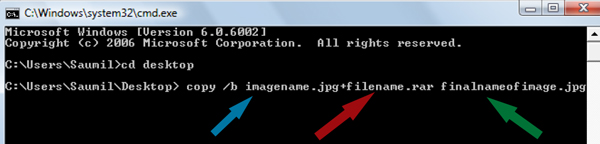
5. CD stands for change directory by typing above command you change your directory to desktop. After that type command given below.
 Copy /b imagename.jpg + filename.rar finalimage.jpg
hide files behind images
  • Replace imagename.jpg with the name of image you want your file to be hidden behind. Don't forget to add image format (Eg: .jpg,.png,.gif)
  • Replace filename with name of your file you want to hide. It must be in .rar format.
  • Finally Replace finalimage.jpg with whatever name you want your final image with hidden files should be. This is the image where your file will be hidden.
6. Now when you will try to open this newly created image it will open as normal image, but to open you hidden file you need follow steps given below.

How To Access Hidden File ?

To access your hidden file you need to open the newly created image in winrar. Just follow simple steps given below to do that.

    1. Open winrar
    2. Now locate your image and open it or simply drag your image in winrar.